

Luminar Legacy Campaign Has Started: Desktop Plan for €59
Special pricing for eligible owners of previous Skylum products.
We’re excited to let you know that the Luminar Legacy Campaign starts today, September 21!
Owners of previous Skylum products — including Luminar AI, Luminar 4, Luminar 3, Luminar 2018, Aurora HDR, and other eligible legacy products — may be eligible to upgrade to Luminar at the special €59 Desktop Only price instead of €129.
Please note: The special €59 Legacy offer is available to eligible users once they log in to their Skylum account. New users will see the standard offer instead.
📅 Campaign timeline: September 21, 15:00 (EEST) – October 16, 2026
Get the Luminar Legacy Offer →Disclosure: We may earn a commission from purchases made through our affiliate link. This does not affect the price you pay.
Guidy AI desktop assistant is designed to guide you through tasks on your computer, step by step. We downloaded it, set it up, and tested it ourselves on Windows to see how well it actually works.
Our hands-on test: We tested the Guidy AI desktop assistant on Windows, in a web browser, with voice output, and across its interface and Chat History. We also explored the Free Plan and the examples of supported software Guidy presents.
Tested on: Windows, September 2026
If you’ve ever stared at a software menu thinking “Where the hell is that setting?”, Guidy takes a slightly different approach from a conventional chatbot.
Instead of simply telling you what to do, Guidy is designed to see what’s on your screen and guide you through the next step.
We wanted to know whether that sounds better in marketing than it works in practice.
So we downloaded the Guidy AI desktop assistant, created a free account, tested it on Windows, tried browser-based guidance, checked its voice output, looked at the interface and Chat History, and explored the current free plan.
This isn’t a review based on screenshots from a company’s website. We actually used the desktop application ourselves.
Table of Contents
What Is the Guidy AI Desktop Assistant?
The Guidy AI desktop assistant helps users navigate software and websites by providing step-by-step guidance based on what’s currently on their screen.
Rather than asking an AI chatbot to explain a process and then trying to translate those instructions into clicks yourself, Guidy’s approach is to guide you while you’re actually looking at the application or website.
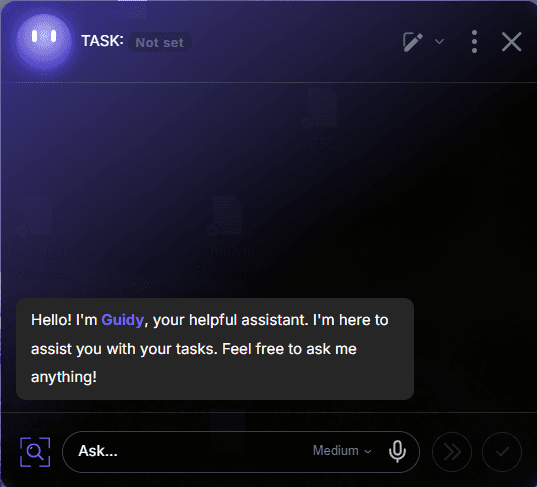
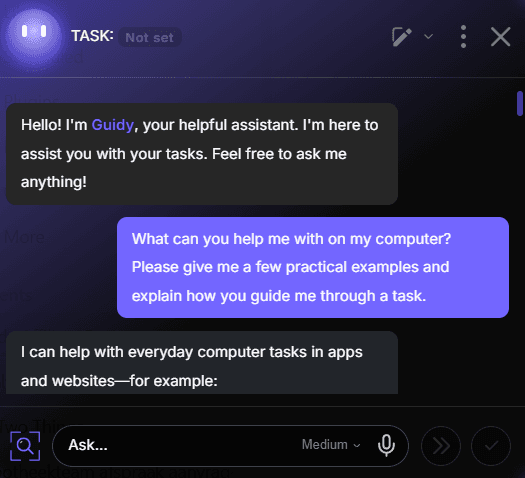
During our testing, Guidy appeared as an on-screen assistant that we could interact with while using the computer.
We also found controls for text and voice interaction, along with a Chat History area where previous conversations can be accessed.
Guidy presents examples involving software and platforms such as Google Analytics, Excel, Meta Ads, and Photoshop, while also positioning itself as capable of helping with “anything on your screen.” Those are examples Guidy presents as supported software. Our own hands-on testing focused on Windows navigation, a browser-based WordPress.com task, voice output, and the Guidy interface.
The basic idea is different from a normal chatbot.
Instead of asking an AI a question, receiving a block of instructions, and then figuring out where those instructions apply, Guidy looks at what’s currently on your screen and guides you through the next step.
You tell it what you want to accomplish.
Guidy then points you toward what to do next.
You perform the action.
Does it actually work that way?
We downloaded it to find out.
The Story Behind Guidy
About a year before launch, the team asked itself a simple question: if AI could do anything, what would be the best way to help people learn? Answering questions felt too trivial, since chatbots already do that, and generating learning materials didn’t seem compelling either.
So they went back to something their students had been telling them for over a decade: the best way to learn is by doing, inside real software, on real problems.
The catch, as they describe it, is that the moment you get stuck, everything slows down. You search forums, open multiple tabs, watch tutorials and retry the same step. The team says it saw many people simply give up while teaching its own courses.
Guidy is their answer: a tool that guides you in real time, in any software or website, every time you get stuck. They also say they wanted to build something that works with people and empowers them, rather than trying to replace them.
We can’t verify the backstory ourselves, but it fits what we saw in testing: the Guidy AI desktop assistant is built around guiding you through each step rather than taking over the task.
Why We Decided to Test Guidy
There is no shortage of AI tools telling us what they can do.
What we don’t see nearly as often is someone actually sitting down, downloading the software, and testing the basic promise before recommending it.
So that’s what we did.
We didn’t want to begin with an impressive-looking demonstration.
We wanted to know whether Guidy could handle something ordinary.
If the basic experience didn’t work, there would be little point testing anything more complicated.
Setting Up Guidy
Getting started with the Guidy AI desktop assistant is straightforward.
First, create your Guidy account using Google or email. After signing up, you’ll receive an email asking you to verify your account.
After verification, the Guidy desktop application starts downloading. Follow the installation instructions for your computer.
On Windows, the installer gives you the option to make Guidy available to anyone who uses the computer or only to the current Windows user.
Once the installation is complete, launch Guidy. The desktop assistant is then ready to use alongside the applications and websites on your computer.
There isn’t much complicated configuration involved. You can simply describe what you want to accomplish in plain language and ask Guidy to guide you through the next steps.
How Guidy Guides You
This is where the Guidy AI desktop assistant becomes different from simply asking ChatGPT or another AI assistant a question.
Guidy is designed around the next action.
For example, instead of giving you a long explanation of how to navigate a particular application, it can point you toward the next button, menu, field, or control.
During our testing, the instructions were displayed clearly on screen.
Guidy also waited appropriately between steps rather than continually firing instructions at us.
That matters because a step-by-step assistant becomes considerably less useful if it gives you five instructions while you’re still trying to complete the first one.
Is Guidy Just ChatGPT With Extra Steps?
It’s a fair question, and Guidy’s own welcome emails address it head on.
Guidy’s answer is no. Both use AI, but the team says the difference is what happens next. Ask a chatbot how to build a pivot table in Excel and you typically get a long list of written steps. You then have to switch back to Excel, find the menu being described, and keep your place while you click around.
Ask Guidy the same question and, as the team describes it, it points to the control on your screen, then the next one, then the next. Their summary of the whole product is less reading, more doing.
That matches how it felt in our testing: the guidance appeared on screen one step at a time, and Guidy waited for us before moving on. A chatbot can still be handy when you want a longer written explanation, but for the “I just need to find the button” moments, Guidy’s approach is a different experience.
Our First Windows Test
We wanted to start with something simple and practical.
Guidy guided us through a Windows task involving a folder on the desktop.
The process was deliberately basic because the point wasn’t to test whether an AI could perform an impressive technical workflow. We wanted to see whether the Guidy AI desktop assistant could actually guide a normal computer user through a sequence of actions.
It did.
We followed the instructions and ended up with the “Guidy Test” folder visible on the Windows desktop.
That may sound like a small test — and it is — but it gave us something important: a completed task that we could verify ourselves rather than simply trusting an AI explanation.
Testing Guidy in a Web Browser
We also tested Guidy with a browser-based task.
For this test, we opened WordPress.com and asked Guidy to guide us through the process.
It identified the next action and instructed us to click Log in.
The interesting part here was that we weren’t asking Guidy to explain WordPress in general.
We were asking it to help us with what was actually in front of us on the screen.
That’s an important distinction.
A conventional AI answer might tell you where the login button should be. Guidy’s approach is intended to help you locate and interact with the control you’re actually looking at.
Guidy’s Voice Guidance
One of the features we specifically wanted to test was voice.
The Guidy AI desktop assistant can provide voice as well as text guidance.
In our testing, the voice sounded natural rather than obviously robotic, and it read the same useful instructions that appeared on screen.
It also allowed us to control the volume.
Most importantly, it didn’t continually interrupt us. The guidance waited appropriately rather than talking over every action.
We also found that it wasn’t simply reading every tiny piece of information on the screen. The spoken instructions focused on the actual guidance we needed.
The interface also includes a microphone control for voice interaction, but our hands-on testing focused on Guidy’s spoken guidance rather than voice input.
Based on the interface we observed, Guidy supports voice and text interaction, but we did not independently test voice input.
Chat History and Projects
Guidy also includes a Chat History area.
During our testing, we could see the conversation we had already started, along with options such as New project and Delete.
This makes the interface feel more like an ongoing assistant than a one-off instruction box.
We aren’t claiming that conversations are permanently stored or synced across devices; we’re simply reporting what we observed in the application during our testing.
What Software Can Guidy Help With?
Guidy presents examples including:
- Google Analytics
- Excel
- Meta Ads
- Photoshop
- Websites and other software
It also presents the broader idea of helping with “anything on your screen.”
That’s an important part of Guidy’s proposition.
We didn’t just take those examples at face value. Our hands-on testing covered Windows navigation, a browser-based WordPress.com task, voice output, and the Guidy interface. We did not individually test Google Analytics, Excel, Meta Ads, or Photoshop.
Guidy for Everyday Computer Tasks
The examples Guidy provides cover the kind of situations where people often get stuck rather than highly specialised computer work.
Its suggested tasks include things such as:
- Creating spreadsheet formulas
- Making charts
- Formatting documents
- Finding options inside websites
- Managing browser tabs
- Uploading files
- Finding downloads
- Understanding unfamiliar menus
- Navigating software settings
Guidy’s welcome email also suggests a few prompts to try, which show how broad the idea is:
- “How do I make a pivot table with a running total in Excel?”
- “Where do I submit a return request for the headphones I just bought on Amazon?”
- “How do I delete my old Facebook account?”
- “Where is the option to cancel my Audible subscription?”
This is where the concept makes sense.
You don’t necessarily need an AI assistant because you can’t find information on Google.
Sometimes you need an assistant because you know what you want to accomplish but don’t know where the damn button is.
That’s the problem Guidy is trying to solve.
Guidy Pricing: Free or Unlimited
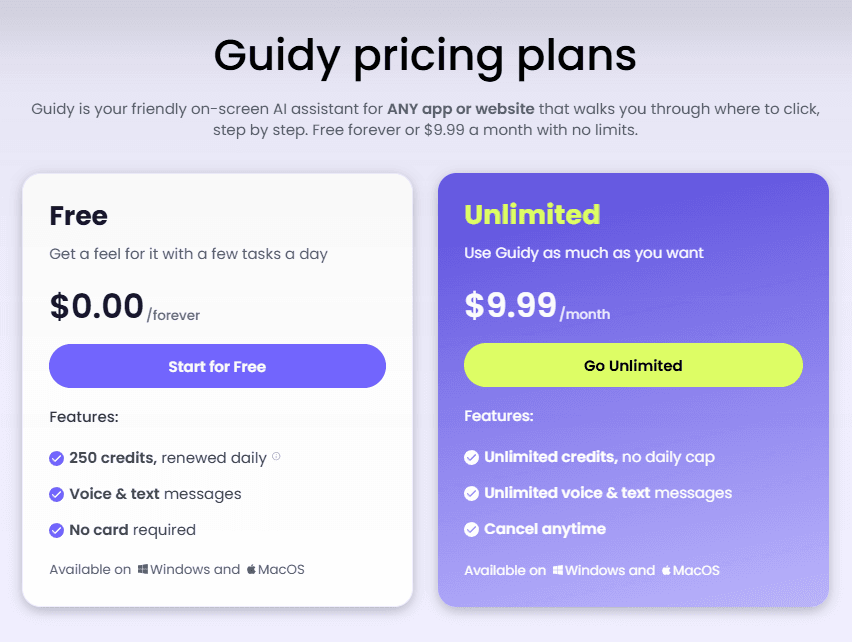
As of our testing in September 2026, the Guidy AI desktop assistant offers two plans.
Free — $0.00/forever
The Free plan is intended to let you get a feel for Guidy with a few tasks each day.
Features:
- 250 credits, renewed daily
- Voice and text messages
- No card required
- Windows and macOS
Unlimited — $9.99/month
The Unlimited plan removes the daily credit limitation.
Features:
- Unlimited credits, with no daily cap
- Unlimited voice and text messages
- Cancel anytime
- Windows and macOS
If you’re curious about Guidy, the free plan gives you a straightforward way to test the core experience before paying for Unlimited.
Other Details Listed by Guidy
Guidy’s pricing page also lists a few details worth knowing:
- Three thinking modes, so you can choose how deeply Guidy reasons and balance depth against speed
- Any language, in both text and voice
- Account-based use, so you can use Guidy across your devices on either plan
- 14-day refund on Unlimited: Guidy states a full refund if you request it within 14 days of paying
Guidy’s Security and Privacy Claims
Guidy’s website states that it only reads your screen when you ask it for help and says it does not store, watch, or share what it sees.
It also says there is no background access or quiet data collection.
Guidy adds that it never uses your screen activity to train AI models, and that data passed between Guidy and its servers is encrypted end to end.
Those are Guidy’s stated privacy and security claims, rather than something we can independently verify through our hands-on testing.
That’s an important distinction.
If you’re considering using an AI assistant that interacts with what’s displayed on your computer, we’d recommend reading the company’s current privacy and security information yourself before using it with sensitive information.
top private search engines that don’t track your data
What We Liked About Guidy
After actually using the application, several things stood out to us.
It works from the screen you’re actually looking at
That’s probably the biggest difference.
You aren’t necessarily translating a generic AI answer into a series of clicks yourself.
The instructions are easy to follow
The prompts were clear and focused on the next action.
Voice guidance is genuinely useful
We tested the spoken instructions and found them natural, clear and appropriately paced.
There’s a free way to test it
The free plan doesn’t require a credit card and provides daily credits.
It isn’t limited to one particular website
Guidy’s concept is deliberately broader than a single software integration.
What We Would Keep in Mind
There are also a few things worth knowing before jumping in.
The free plan has a daily limit
The 250 credits refresh each day, and unused credits don’t carry over. Guidy says simple questions use just a few credits, while longer tasks use a few more. Its welcome email and pricing page say that typically covers around 4–8 guided tasks per day, so it’s enough to try the assistant but may not stretch far if you plan to rely on it heavily.
It needs an internet connection
Guidy needs a stable internet connection to work, because it has to communicate with its AI to help you.
AI guidance isn’t the same as doing the work for you
The core purpose of the Guidy AI desktop assistant is guidance.
It’s designed to help you understand what to do next rather than simply taking over every computer task automatically.
That distinction is important when deciding whether this type of assistant fits the way you work.
It works from your screen, so privacy deserves a thought
Because Guidy looks at what’s on your screen when you ask for help, it’s worth being mindful of what’s visible at that moment.
Guidy’s stated policy is that it doesn’t store or share what it sees, but that’s a claim we can’t verify independently, so we’d avoid asking for help while sensitive information is on screen.
Expect a welcome email series with upgrade prompts
After signing up for the free plan, we received a series of welcome emails from Guidy. They were useful for details like the daily credit allowance and example prompts, several of the emails also included links to upgrade to Unlimited, so expect some marketing along with the onboarding.
Who Is Guidy AI For?
Based on our testing, the Guidy AI desktop assistant could make sense for people who regularly encounter software or websites they don’t know well.
That could include:
- Beginners learning new software
- People who regularly switch between different online tools
- Anyone who gets stuck navigating unfamiliar interfaces
- Students learning computer-based workflows
- Solo creators and small-business owners
- People who want step-by-step guidance rather than a long written explanation
It’s particularly interesting for someone who thinks:
“I know what I want to do. I just don’t know where to click.”
That’s exactly the kind of problem Guidy is designed around.
If you’re a solo creator building your toolkit, our guide to the best affordable tools for solo creators compares free and paid options we use to run this blog.
Our Verdict After Testing Guidy
We went into this test wanting to answer a simple question:
Does Guidy actually help when you’re stuck on your computer?
For the tasks we tested, yes, the guidance worked as intended.
We successfully followed its instructions through a Windows task, used it while navigating a browser, tested its voice output, and explored the application’s interface and Chat History.
What we particularly liked was the difference between asking an AI how to do something and having an assistant guide you while you’re actually looking at the screen.
That’s the part of Guidy that makes the product interesting.
At the same time, this is our experience on our own setup, and results can vary depending on the software you use it with and how complex your task is.
So our experience is best described as exactly what it was: a hands-on test of the Guidy AI desktop assistant on Windows, in a browser, with voice output, and across the application’s interface and Chat History.
A hands-on test of the Guidy AI desktop assistant on Windows, in a browser, and across the example apps it highlights.
And based on that experience, the Guidy AI desktop assistant does a good job of delivering the basic thing it promises: helping you figure out what to do next on your computer.
Want to see how it handles your own apps? Try Guidy’s free plan and judge for yourself.
Frequently Asked Questions About Guidy AI
What is Guidy AI?
The Guidy AI desktop assistant is a tool designed to guide users through tasks in software and websites by providing step-by-step instructions based on what’s on their screen.
Is Guidy AI free?
Yes. Guidy’s current Free plan is listed at $0.00 forever and includes 250 credits renewed daily, along with voice and text messages. No credit card is required.
How much does Guidy cost?
Guidy currently offers a Free plan at $0.00 forever and an Unlimited plan at $9.99 per month. The Unlimited plan includes unlimited credits and unlimited voice and text messages.
Does Guidy work on Windows?
Yes. The Guidy AI desktop assistant is available for Windows, and we tested the desktop application on Windows ourselves.
Does Guidy work on Mac?
Guidy lists macOS as an available platform alongside Windows.
Does Guidy work with websites?
Yes. Guidy is designed to guide users through websites as well as desktop software. We personally tested it with a browser-based WordPress.com task.
Does Guidy have voice support?
Yes. Guidy provides voice and text messages. We personally tested its voice output, which read the on-screen guidance clearly. The interface also includes a microphone control for voice interaction, but we did not independently test voice input.
How many free Guidy credits do you get?
The current Free plan provides 250 credits, renewed daily. Guidy’s welcome email and pricing page say the allowance typically covers around 4–8 guided tasks per day, depending on task complexity.
Do unused Guidy credits carry over?
No. Guidy’s welcome email and pricing page state that unused daily credits do not carry over to the next day.
Does Guidy store what it sees on your screen?
Guidy states that it only reads your screen when you ask for help and says it does not store, watch or share what it sees. These are Guidy’s stated privacy claims, which users should review themselves before using the service with sensitive information.
Can Guidy help with Excel and Google Analytics?
Guidy presents Excel and Google Analytics among its examples of supported software. Guidy presents Excel and Google Analytics among its examples of supported software. We did not individually test either application during our hands-on sessions.
Final Thoughts on the Guidy AI Desktop Assistant
Guidy isn’t trying to be another chatbot that gives you a wall of instructions and leaves you to figure out the rest.
Its idea is simpler:
Tell Guidy what you’re trying to do, show it where you are, and let it guide you through the next step.
We tested that idea ourselves.
For the tasks we tried, the Guidy AI desktop assistant worked, and the voice guidance was a pleasant bonus rather than a gimmick.
The Free plan also makes it relatively easy to try without committing to a subscription.
If you’re the kind of person who regularly finds yourself thinking “I know this should be somewhere, but where?”, Guidy’s approach is worth exploring.
One tip from Guidy’s own welcome emails that we think is sensible: pick the app you feel least confident in and ask Guidy to walk you through the thing you always end up googling. A few of the 250 free daily credits are enough to find out whether it fits how you work.
Looking at other AI tools too? Have a look at our Fieldy AI note taker review.
Disclosure: This post contains affiliate links, which means we may earn a commission if you sign up through them, at no extra cost to you. Our opinions come from our own testing. See our Affiliate Disclaimer for details.
Warm regards,









Please keep comments helpful and respectful.
No affiliate links, promotional links, or YouTube URLs.
Let’s keep our community clean and supportive! 💙